This was posted in another thread that no one is replying to. This is more of a shaders question so it might be because it's in the wrong forum. Earlier, I was given a link to some code by steempipe, however, I was getting an all-black texture as my texture is all black, but with varying degrees of alpha quite randomized. So, I scanned through the code to look for some things that might be the cause to it and managed to get a little further, however, the objects are half as dark still apparently not reading through the alpha.
Think about it this way. You have a base image for the background layer in the GIMP. You add a new layer with the roughness containing the random alpha. Only, instead, you can "cram" 4 pixels (I'd like this to vary dependent on one of the entity's skill values like my.skill15 or something) on each side on the roughness texture into the background texture (like detail mapping does). What am I missing? I suspect the alphaop thing, but changing that didn't work as I only got an error instead.
As a side note, I've modified the original code quite a bit, mainly for fixing the tabbing, removing the big chunks of comments that I don't find neccessary like "the material", and changing the names used for some things, like the function name, name of the bmap, name of the technique, material, and action. This is how I have it now:
Code:
var detail_size=4;
bmap detailmap = <roughnessstep2.tga>; // alpha is in multiples of 2 - max of 30

function BG_roughness()
{
	bmap_to_mipmap(mtl.Skin1);

	// Adjust the scale of the textures
	mtl.matrix11 = float(18); // default u scale
	mtl.matrix22 = float(18); // default v scale
}

material roughness
{
	skin1=detailmap;
	event = BG_roughness;
	effect =
	"
		matrix matMtl;
		texture entSkin1; // Your big skin tex
		texture mtlSkin1; // A detailmap

		technique add_roughness
		{
			pass P0
			{
				lighting=false;//false;
				ditherenable=true;
				zwriteenable=true;
				zenable=true;

				alphablendenable=true;
				Texture[0] = <entSkin1>;

				magFilter[0]=linear;
				minFilter[0]=linear;
				mipFilter[0]=linear;

				TextureTransformflags[0] = disable;
				texcoordindex[0]=0;

				ColorArg1[0] = Texture;
				ColorOp[0] = modulate;//2x;
				ColorArg2[0]=Diffuse;

				Texture[1] = <mtlSkin1>;

				magFilter[1]=linear;
				minFilter[1]=linear;
				mipFilter[1]=linear;

				ColorOp[1]=addsigned;
				ColorArg1[1]=Texture;
				ColorArg2[1]=Current;
				AlphaOp[1] = Disable; // this might be the cause to the problem

				TextureTransformFlags[1] = Count2;
				TextureTransform[1] = <matMtl>;
				texcoordindex[1]=1;

				colorop[2]=disable;
				alphaop[2]=disable; // as well as this
			}
		}
	";
}

action apply_roughness
{
	my.material = roughness;
}
What am I seeing?
Go here and see.
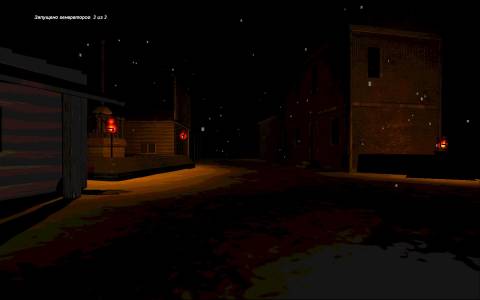
The buildings on the right are of a plain white texture with almost no detail. The texture shown in here is half as bright, which is what the code above is doing. The buildings on the left and the beach area are also with the roughness, what they are in the above screenshots. The roughness as you see it is actually from the model's skin image, the texture, not from the detail mapping, but this is how it should appear (only, not this dark). They, too, are half as bright. I'm using a black texture with varying amounts of transparency, depending on the degree of roughness.
What else do I need to add or change to get this to cooperate? The list of advantages of this is quite strong.
Also, what shader version and type is this code supposedly compatible with? I think it's a pixel shader, but have absolutely no idea which version.